How to Choose an Industrial PC Monitor?
Choosing an Industrial Pc Monitor is not simply a matter of picking the largest display or lowest price. The right unit must stay readable where ordinary office screens may struggle: near vibrating machinery, under overhead glare, or beside dusty production lines. Small details matter. Panel brightness, touch technology, input ports, mounting pattern, and operating temperature can shape daily usability. A bright panel may help beside a sunlit loading bay, while an anti-glare surface can reduce reflections from steel worktops. But brighter is not always better; heat, power use, and viewing distance also deserve attention.
This guide explains how to compare these factors against the actual workstation, not an idealized product sheet. Start with the environment: note ambient light, moisture exposure, vibration, cleaning routines, and available space before reviewing specifications. Then check compatibility with the computer, including resolution, connector type, touch drivers, and whether operators need gloves. Capacitive touch feels quick, but gloves or water may complicate use; resistive options can be more forgiving, with trade-offs. No single display fits every line. A supplier’s rating is useful, yet it should be checked against installation conditions and documented support. Selection plans can miss simple issues, such as a cable bend blocked by the enclosure. That is worth remembering. The aim is a monitor operators can read, reach, and maintain throughout a real shift—not merely one that looks impressive in a catalog.
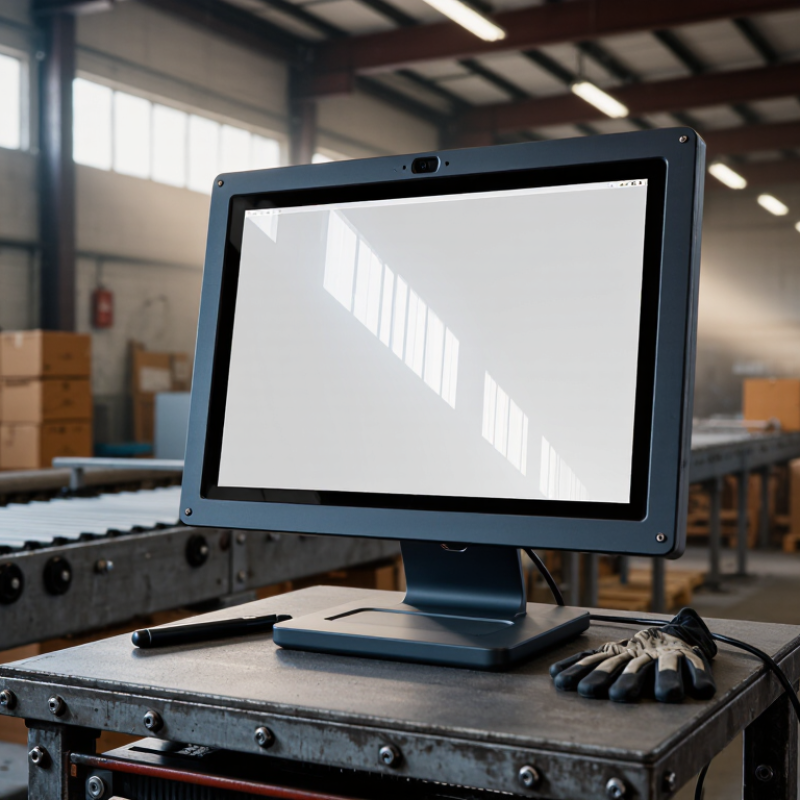
What Is an Industrial PC Monitor and How Does It Differ?
An industrial PC monitor is a display designed to work alongside computers in factories, workshops, control rooms, or other demanding settings. It shows machine data, operator controls, alarms, and production status. Some models include a touchscreen; others connect to a separate input device. The monitor itself does not necessarily contain a computer, so check whether you need a display only or an all-in-one system.
The key difference from a typical office monitor is its intended working environment. A factory display may need a sealed front panel, a sturdy metal housing, and a screen that remains readable under bright overhead lights. It may also support mounting inside a cabinet or flush against a machine panel. These details matter when gloves, dust, vibration, or long operating hours are part of the job. A glossy screen can look sharp in a showroom, then reflect every ceiling lamp on the production floor.
Industrial does not mean indestructible. Specifications vary, and a claimed operating-temperature range may apply only under certain conditions. Check the full datasheet, including touch response, available connections, power input, and protection ratings. Then compare those details with the actual installation site. A monitor can be technically suitable yet awkward to clean or difficult to reach once installed. That part is easy to overlook.
Assess the Monitor’s Operating Environment and Required Protection
Start with the monitor’s actual location, not the factory’s general description. A unit beside a dry packing line faces different risks from one near a washdown station or a furnace. Note ambient temperature, humidity, airborne dust, liquid splashes, and direct sunlight during a full shift. Small details matter. A door that stays open can expose a panel to more dust than expected.
Match protection to those conditions. Check the specified operating temperature and the enclosure’s ingress-protection rating, then confirm what the rating covers. It does not automatically protect exposed connectors, poorly sealed cable entries, or a cabinet left open for service. In damp areas, consider condensation and drainage, not just splashes. Where vibration is present, inspect the mounting method and cable strain relief. A sealed screen can still fail if its installation is careless.
Think about the operator, too. Will workers use gloves? Is the display readable under overhead lights, or does glare hide alarms? Cleaning chemicals may damage a surface coating, so verify compatibility before choosing a cleaning routine. I would not assume “industrial” means suitable for every plant; that label is too broad. Record the harshest likely conditions, and leave room for uncertainty, such as seasonal heat or a new cleaning process.
Choose Screen Size, Resolution, Brightness, and Touch Features
Choose screen size from the operator’s normal viewing distance, not from the available panel space alone. A 10-inch display may suit a compact machine with a few large controls, while dense charts often need more room. Check the interface at the actual distance. Small text can look sharp on a bench and become tiring across a production floor.
Match resolution to the information shown. Higher resolution helps with detailed diagrams, but poorly scaled software can make buttons too small to tap. Brightness depends on ambient light: a dim indoor station needs less output than a panel near a sunlit window. Check the viewing angle and anti-glare surface, too. Brightness alone is not enough. A hood may help with reflections, though it can restrict access in tight installations.
Choose touch features around real working conditions. Operators wearing gloves may need a touch system that recognizes gloved input; verify the glove type before buying. Water droplets, dust, and repeated taps can also affect usability. Test the monitor with the interface, gloves, and lighting used on site. A quick desk test can miss problems. It is easy to overvalue resolution and overlook one awkward button, so review the complete screen layout before final selection.
Match Interfaces, Mounting Options, and System Compatibility
How to Choose an Industrial PC Monitor?
Start with the connections on the industrial PC, not just the monitor’s feature list. Match the video input, such as HDMI, DisplayPort, or VGA, and check the supported resolution and refresh rate. Touchscreens often need a separate USB connection; some systems use serial interfaces instead. Confirm that the operating system supports the touch controller and that suitable drivers are available. A picture on screen is not enough if touch input fails.
Mounting affects both fit and service access. VESA mounting suits many arms and brackets, while panel-mount models need a correctly sized cutout and enough space behind the enclosure. Measure the panel opening, monitor depth, and cable bend room. Tight corners can strain connectors. Check whether the bezel or gasket seals properly against the cabinet, especially where dust or washdowns are concerns. Small details matter.
System compatibility can be easy to overlook. Compare the monitor’s power requirements with the available supply, and verify connector locations against the PC and cabinet layout. A quick bench test can reveal scaling problems, awkward touch calibration, or cables that block nearby ports. Specifications do not always show these annoyances. I would still leave room for a little uncertainty: older PCs may behave differently from their documentation, so test the actual setup before fixing the display in place.
How to Choose an Industrial PC Monitor
Match the signal interfaces, mounting-hole pattern, and system requirements before selecting a monitor.
The chart shows common VESA mounting-hole spacings in millimeters. Confirm the monitor and arm use the same pattern. Also check that video ports match the computer, USB is available if the touchscreen requires it, and the operating system supports the monitor’s resolution and touch functions.
Verify Reliability, Certifications, and Long-Term Support
Choosing an industrial PC monitor means checking more than brightness and screen size. Ask for test evidence tied to the exact model, including operating-temperature limits, vibration results, and ingress protection. Confirm that safety and EMC certificates cover the monitor’s intended configuration; a certificate for a similar unit is not enough. IEC 61000-6-2 addresses immunity in industrial environments, while an IP rating describes protection against dust and water under specified test conditions. Neither guarantees years of trouble-free operation. Small details matter.
Long-term support deserves equal scrutiny. Request the expected product life, written end-of-life notice period, repair options, and availability of replacement panels, power supplies, and cables.
Uptime Institute’s 2024 Annual Outage Analysis found that 54% of respondents’ most recent significant outages cost more than $100,000; 16% exceeded $1 million.
That report concerns outages broadly, not monitor failures, but it shows why a small display issue can become an expensive operational risk. Ask suppliers how they validate units after temperature cycling and how quickly they can provide compatible replacements. A paper certificate can still hide a weak parts plan. I would also check whether firmware updates remain available after purchase; this is often overlooked, and support promises can be vague.

